Connect a Brokerage
This is how users connect their existing brokerage accounts so they can place trades on your platform.
How It Works
- Your server uses the user's Trade It token to request a connect session URL.
- Your client-side app passes that URL into the React SDK.
- The user selects a brokerage, authorizes it, and returns to your platform flow.
Server-side: Request a Connect Session URL
Call Trade It's API server-side to get a url to the connection portal. The URL is pre-authenticated so the user does not need to log in.
Request
POST <api endpoint>/api/session/url
Content-Type: application/json
Authorization: Bearer <user's trade it access token>
{
"target": "connect"
}This opens a connection portal showing every active brokerage. To launch a particular brokerage directly, use its brokerage code:
{
"target": "connect",
"brokerageCode": "charles_schwab"
}Request Fields
| Field | Type | Required | Possible values and behavior |
|---|---|---|---|
target | string | Yes | connect |
brokerageCode | string | No | One of robinhood, etrade, coinbase, moomoo, kraken, charles_schwab, webull, tradestation, tradestation_paper, public, or tastytrade. Opens that brokerage directly. Cannot be combined with brokerageFilter. |
brokerageFilter | object | No | Customizes the brokerage picker. Omit it to show every active brokerage. Cannot be combined with brokerageCode. |
brokerageFilter.supports | string[] | No | Any combination of stock, crypto, options, fractional-shares, notional-orders, take-profit, and stop-loss. A brokerage must support every listed capability. |
brokerageFilter.include | string[] | No | Brokerage-code allowlist, for example ["charles_schwab", "robinhood"]. When present, brokerages outside the list are hidden. |
brokerageFilter.exclude | string[] | No | Brokerage-code denylist, for example ["tastytrade"]. Exclusions take precedence over include. |
Customize the Brokerage Picker
Use brokerageFilter when your product should show only brokerages that fit its trading experience:
{
"target": "connect",
"brokerageFilter": {
"supports": ["options"],
"exclude": ["tastytrade"]
}
}This example shows every active options-supporting brokerage except Tastytrade. The picker always omits inactive brokerages. If no active brokerage matches, Trade It omits the restriction and shows the full picker.
Response
{
"url": "https://tradeit.app/connect?ti_token=ti:...&embedded=1",
"expiresAt": "2026-02-27T19:35:12.000Z",
"feature": "connect"
}Request this URL immediately before opening the modal. It expires after 30 minutes and should not be cached for reuse.
Client-side: Open the Connection Modal
import { TradeItModal, useTradeIt } from '@trade-it/react';
function ConnectBrokerageButton() {
const tradeIt = useTradeIt();
async function openConnect() {
const res = await fetch('/your-server/tradeit/connect');
const data = await res.json();
tradeIt.openConnect({
launch: {
mode: 'connect',
url: data.url,
},
});
}
return (
<>
<button onClick={openConnect}>Connect a Brokerage</button>
{tradeIt.modalProps && <TradeItModal {...tradeIt.modalProps} />}
</>
);
}Connection Flow
This is the experience your users see inside your platform when they connect a brokerage.
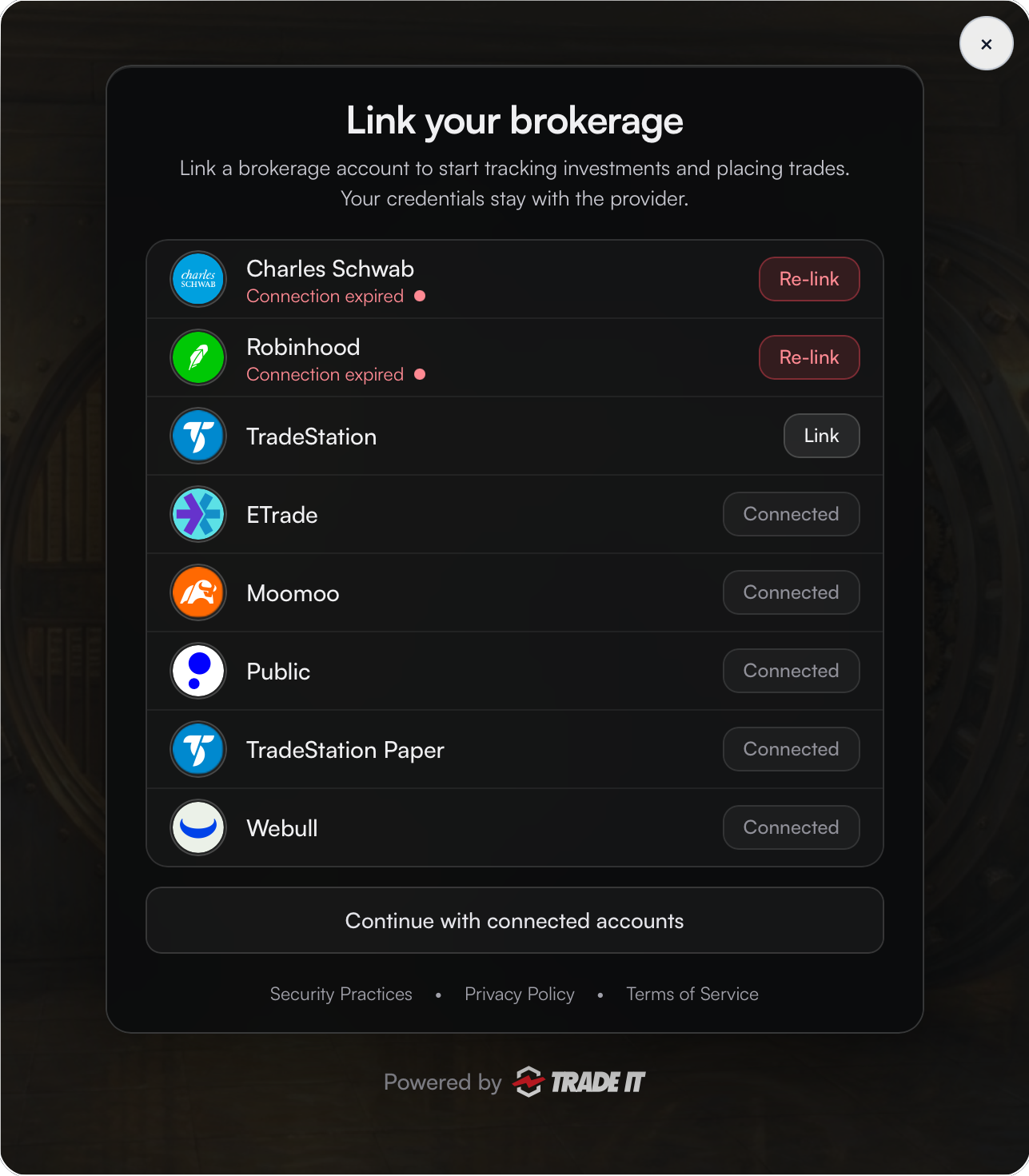
Step 1: Select a Brokerage
Trade It opens a brokerage picker inside your site. Users choose from supported brokerages, and existing/expired connections are labeled clearly.

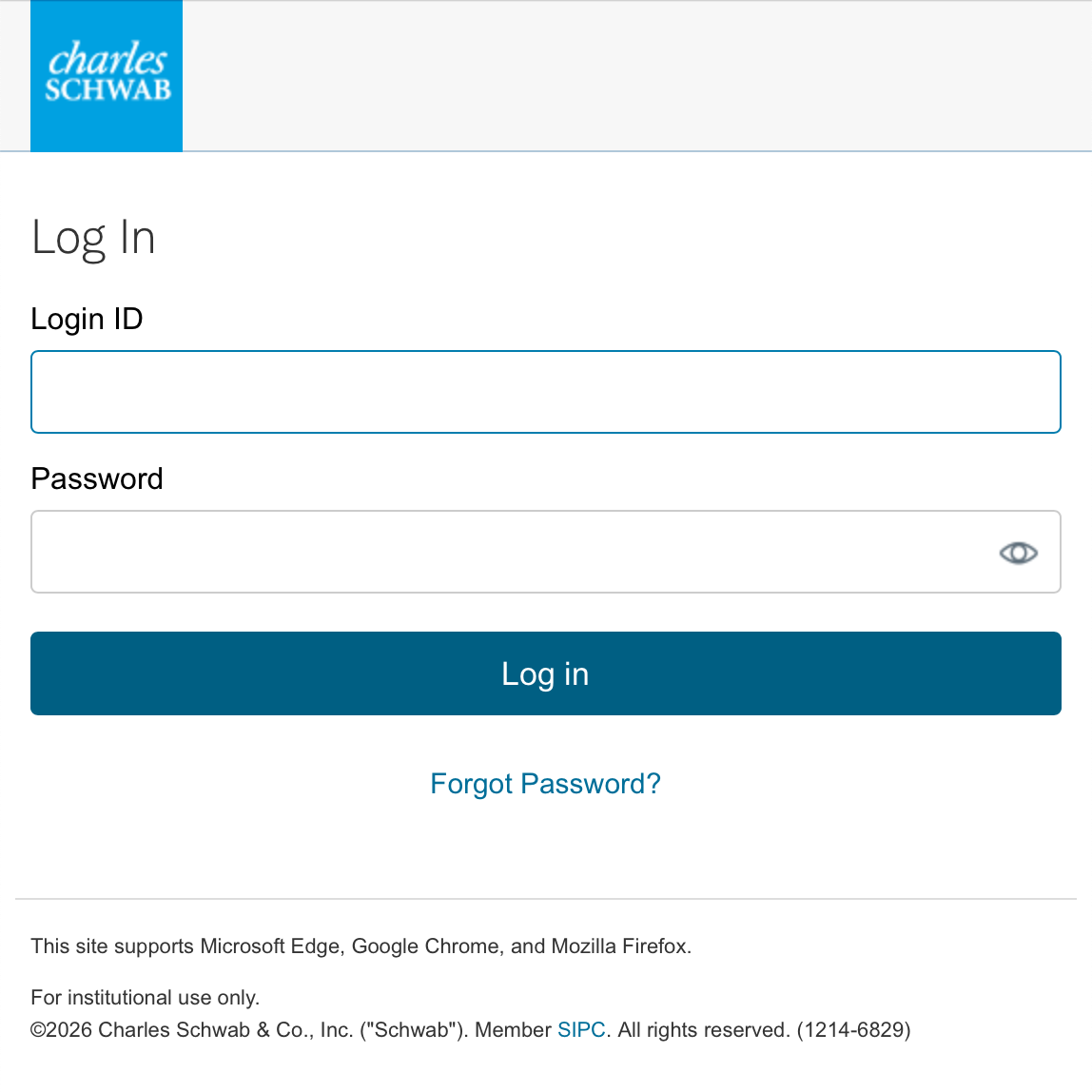
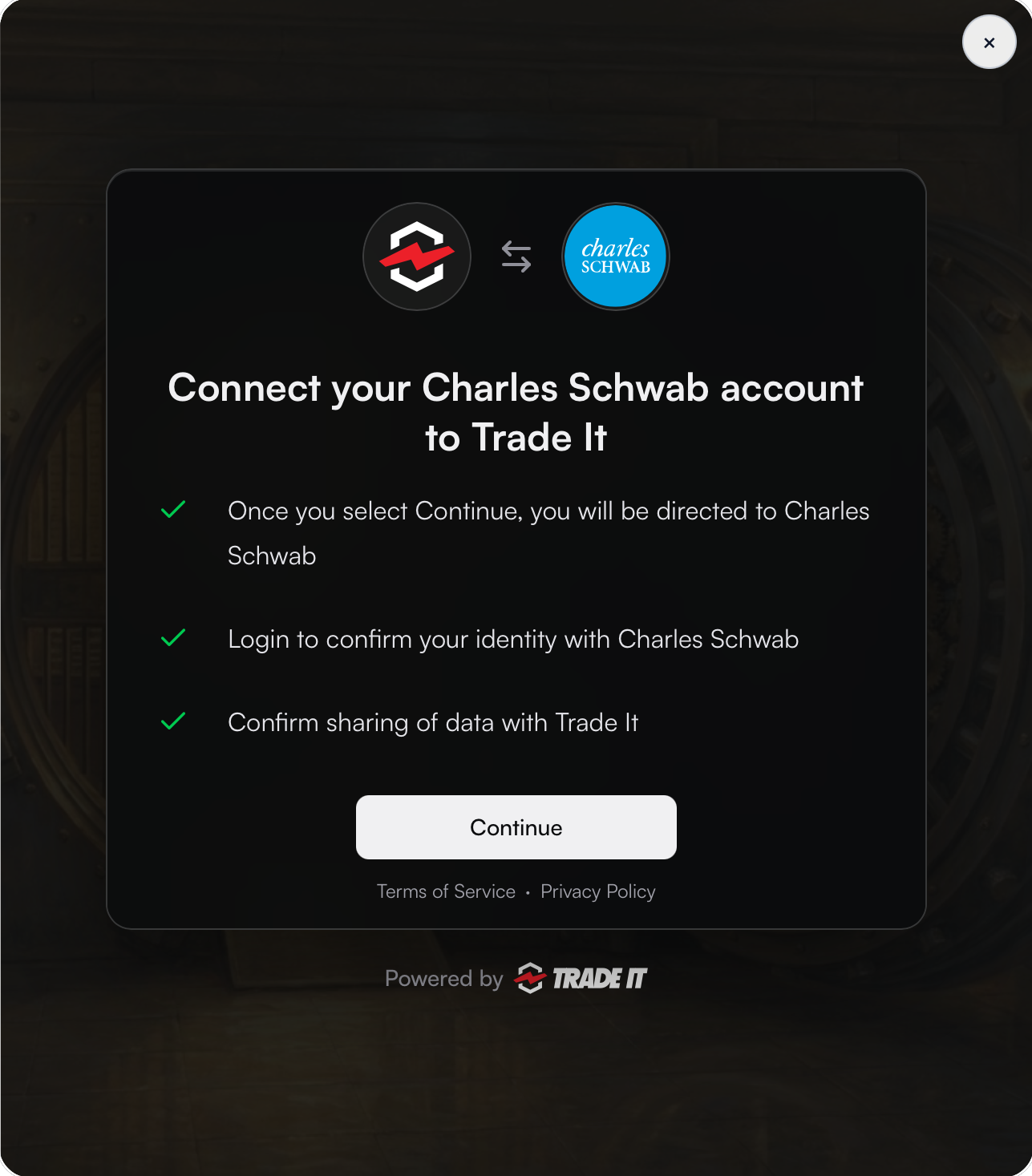
Step 2: Complete Brokerage Authentication
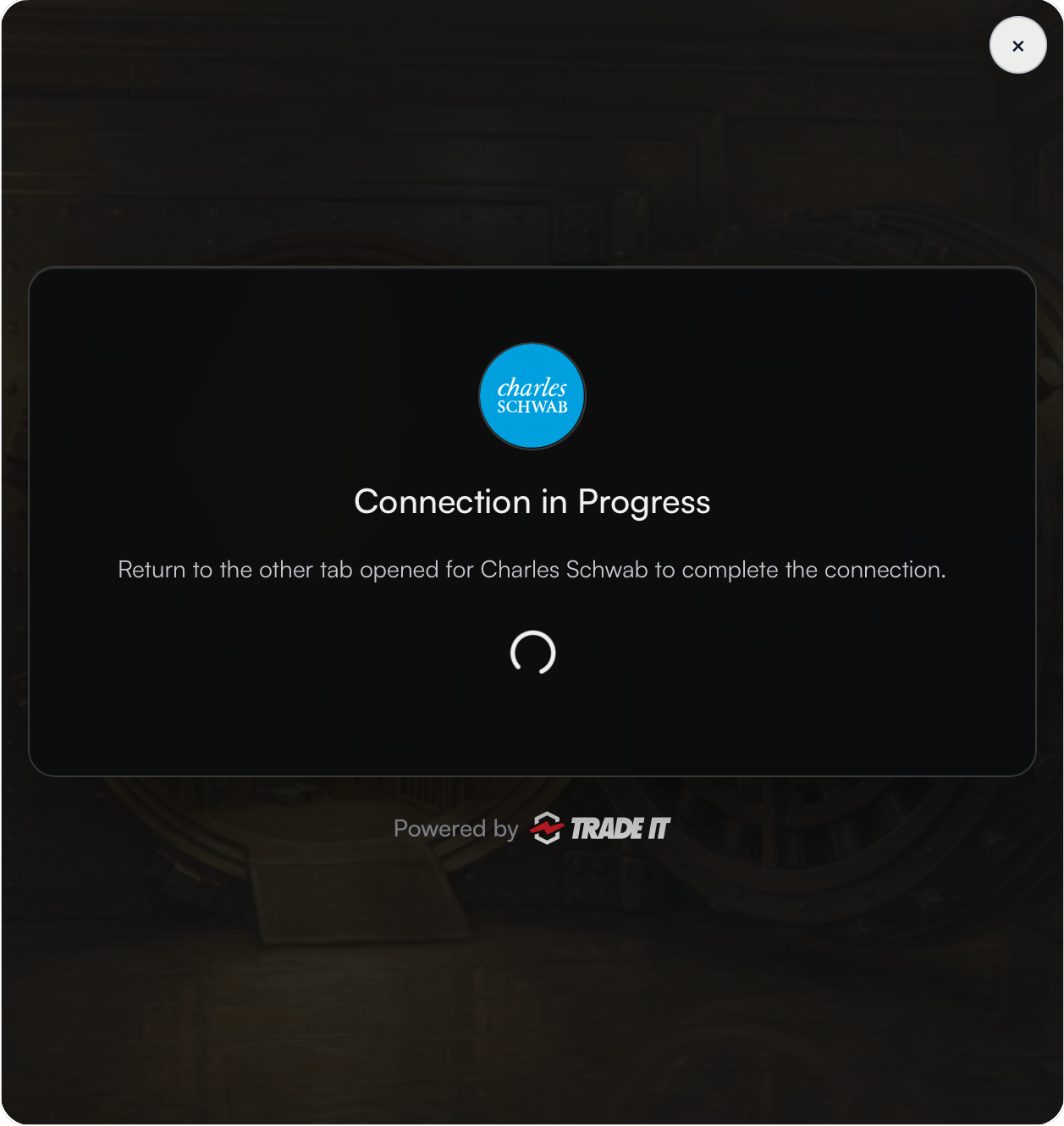
After selection, Trade It starts that brokerage's auth flow. Depending on brokerage behavior, users may be redirected to an auth tab/window while the modal tracks progress.


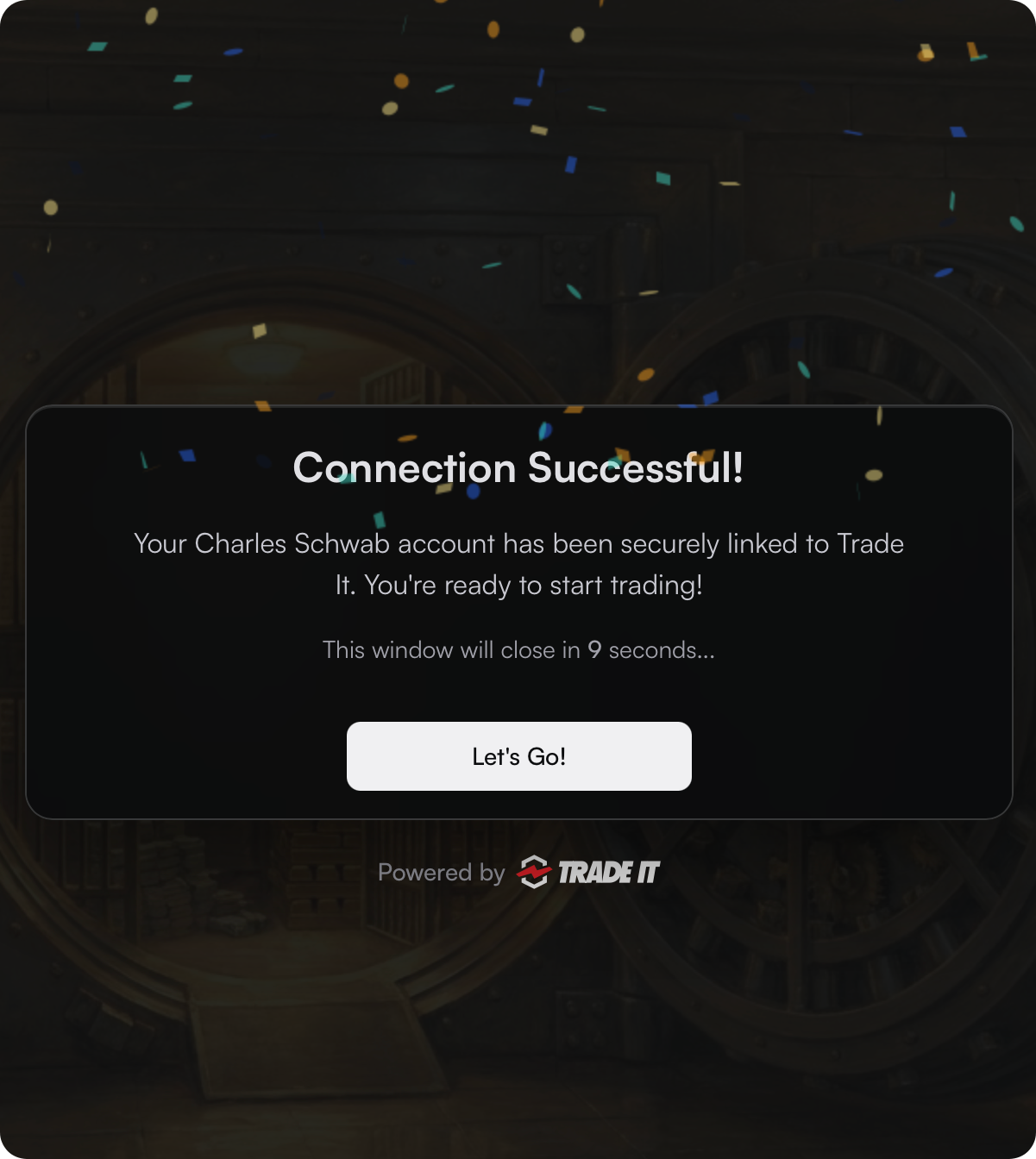
Step 3: Return to Your Platform
After success, Trade It confirms completion and hands control back to your client-side flow so users can move directly into trading.