

Discord Commands
The Trade It bot makes available a number of slash commands. To use them, just type / in Discord, choose the Trade It app, and select the command you want to run.
One command lives in the ... menu: Copy Trade, which copies any channel post into a private trade draft.
Command Reference
Setup Commands
| Command | Visibility | What it does |
|---|---|---|
/connect | Private | Opens Trade It so you can connect a brokerage account. |
/help | Private | Shows a welcome message, command list, trading behavior, and dashboard tips. |
/login | Private | Sends you to the focused Discord account-linking page. |
/logout | Private | Opens the linked accounts page with a Discord disconnect confirmation. |
Trading Commands
| Command | Visibility | What it does |
|---|---|---|
/accounts | Private | Shows your connected brokerage accounts, account value, and buying power. |
/alert | Public | Shares a trade alert that other members can review and execute on their own brokerage accounts. |
/holdings | Private | Shows holdings for a selected brokerage account. |
/trade | Private | Creates a draft trade order from natural language. |
/trades | Private | Shows recent trades, each shareable as a public channel trade alert. |
| Right Click → Copy Trade | Private | Copies any post — text, bot alert, or screenshot — into a private trade draft. |
Copy Trade
Copy any trade shared in Discord without retyping a thing. Right-click a message (long-press on mobile), choose Apps → Trade It → Copy Trade, and Trade It copies the trade details into a private draft order.
Copy Trade works on the posts trading communities actually share:
- Plain-text callouts, such as
BTO 1 AAPL 430c Dec 19 @ 12.10 - Alerts posted by other Discord bots
- Screenshots of positions, orders, or broker confirmations
- Forwarded messages
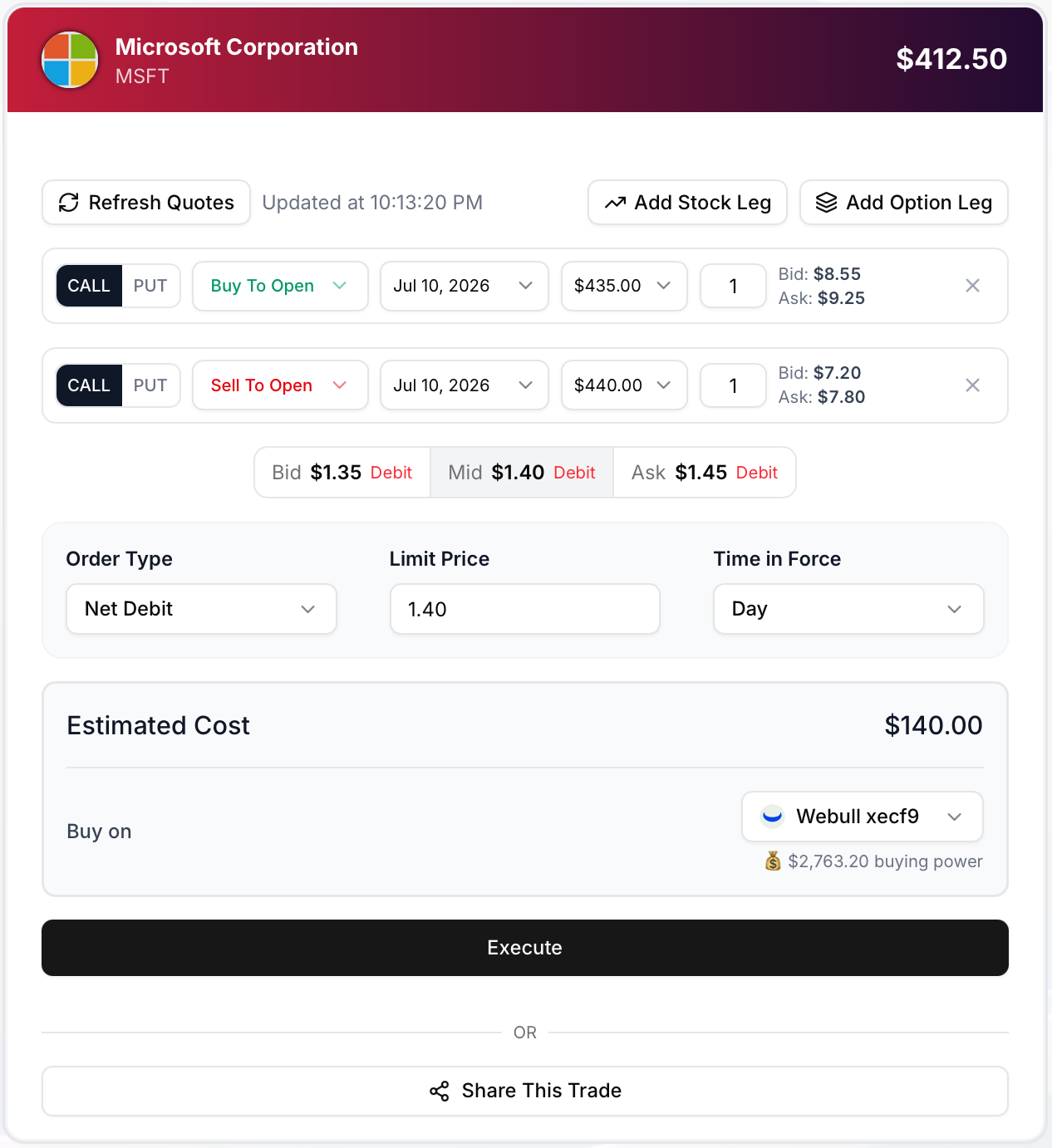
The bot replies with a private summary that opens the trade in-browser, where you can edit the details and execute on any brokerage you have connected.
Note
Copy Trade is private and review-first. Nothing is posted to the channel, and no order is placed until you confirm it in Trade It.
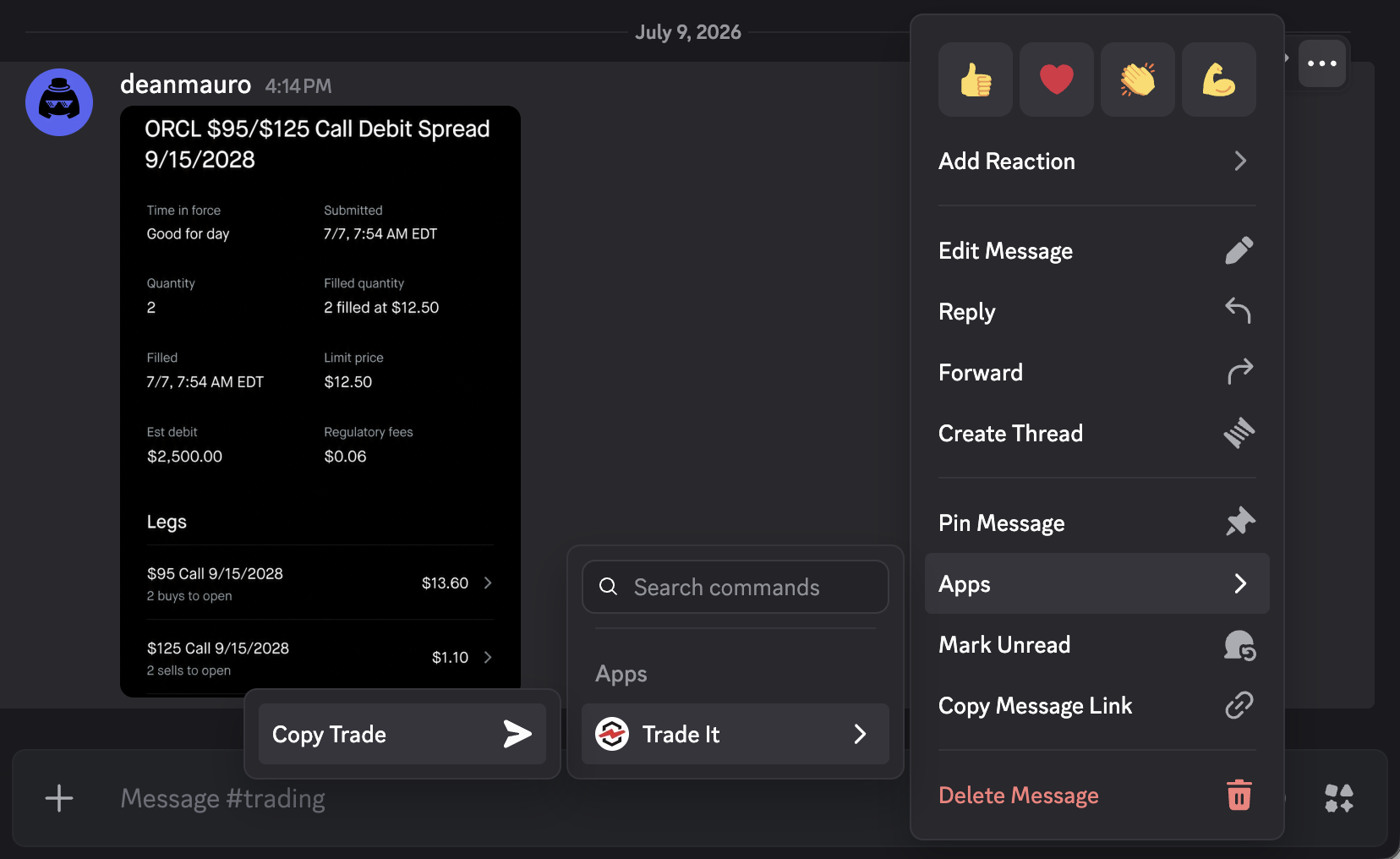
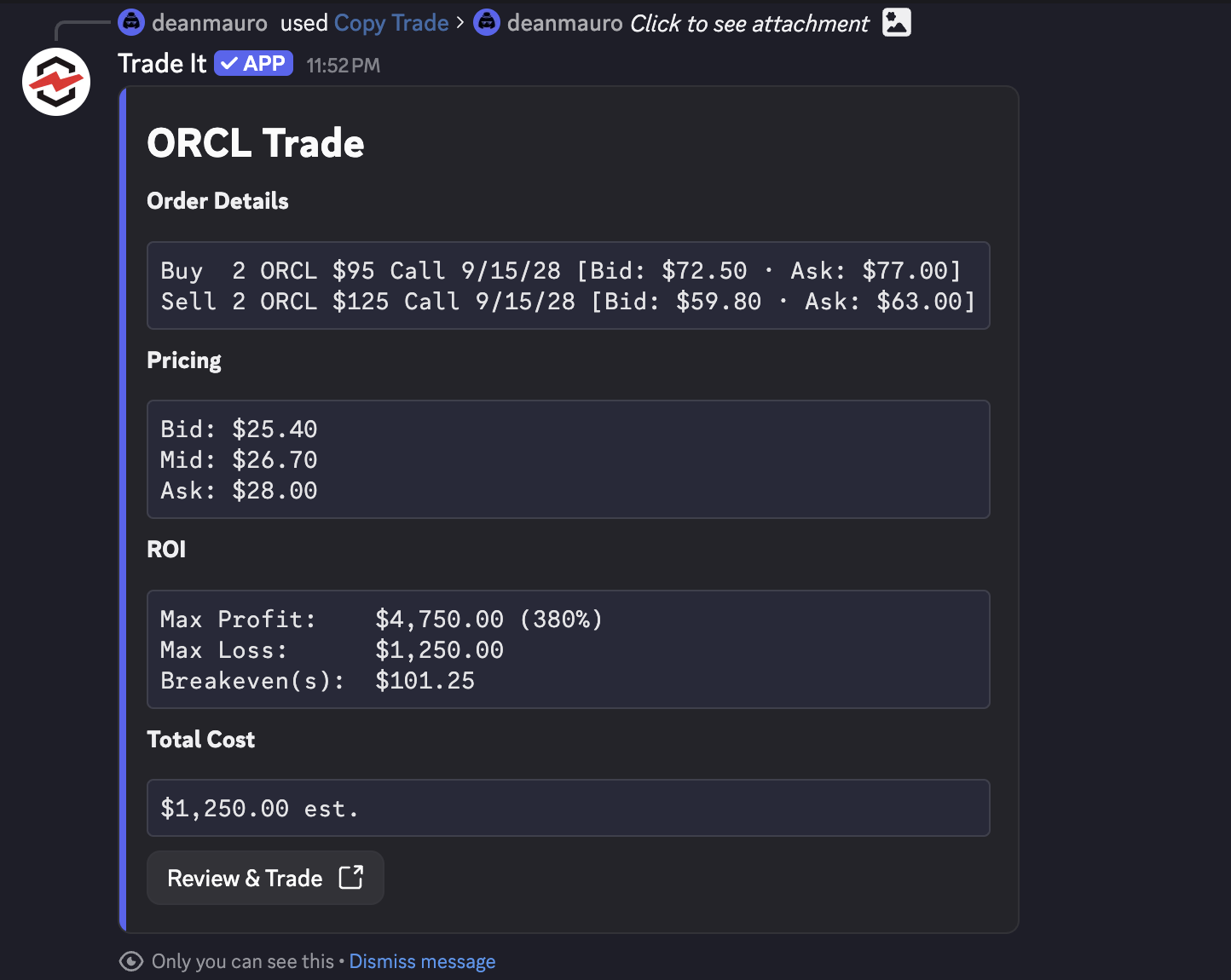
The bot fills reasonable gaps the way a trader would read the message: Closed SPXW $7435 Put @ $20.10 becomes a sell-to-close order, covered my TSLA short becomes a buy-to-close, and quantity defaults to 1 contract when the message does not state a size. If a detail genuinely cannot be inferred, the bot replies telling you exactly which detail is missing.
TIP
Following a leader who posts entries and exits as screenshots or bot alerts? Copy Trade is the fastest way to mirror a call on your own account — see Using Copy Trade.
/alert
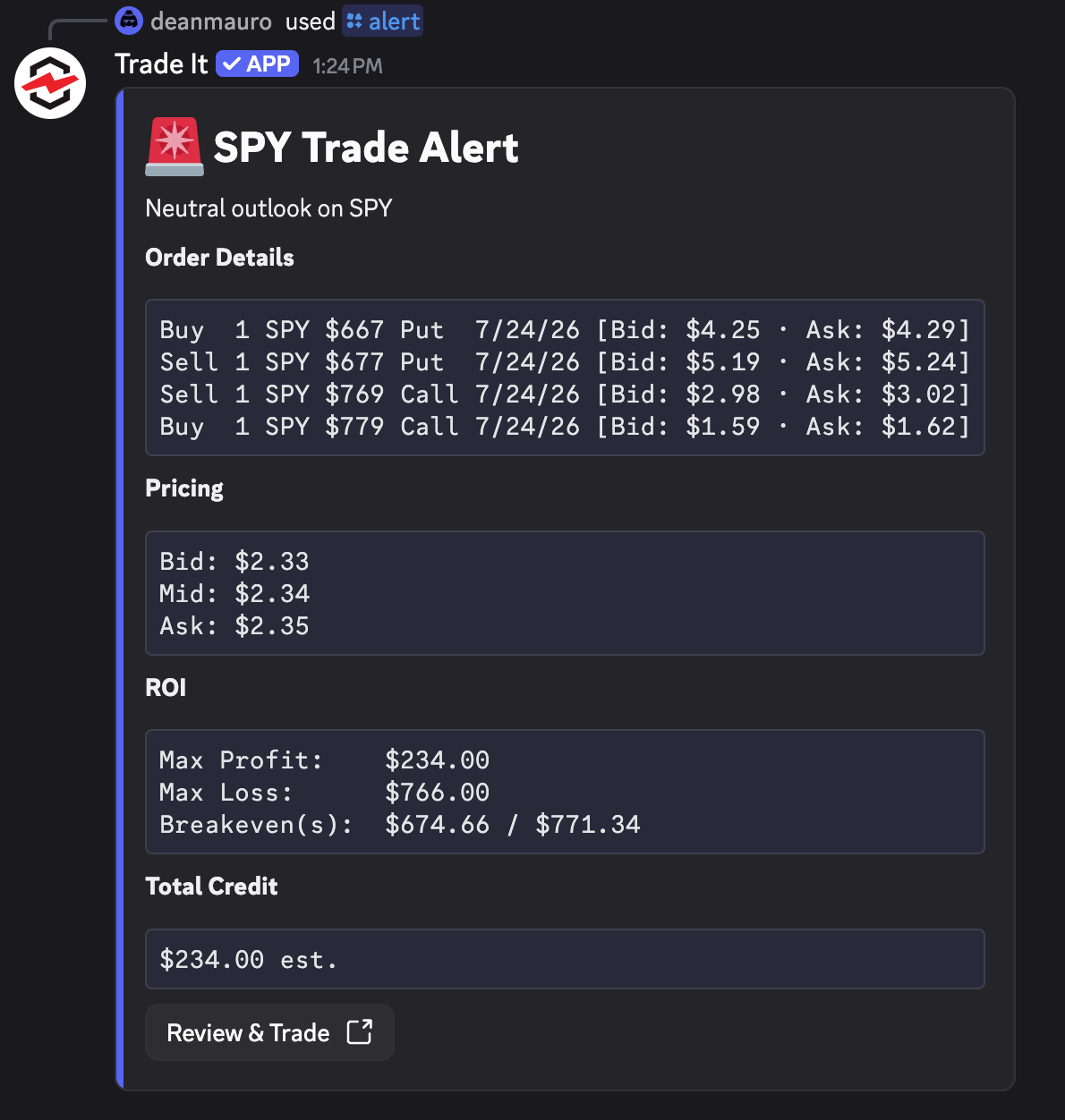
Use /alert when you want to share a trade idea with a community. It responds with a public message containing the trade details and a Review & Trade button.
Other members can use this button to execute the shared trade on their own brokerages.
TIP
Already placed the trade? You can share it without retyping the order — run /trades and click its Share button.
Parameters
| Option | Required | What to enter |
|---|---|---|
details | Yes | The trade to share, such as ticker, action, size, option legs, order type, take profit/stop loss, and price instructions. |
note | No | Extra context for the alert card, such as thesis, risk note, or timing. |
Examples
/alert details:Buy $100 of AMZN note:Starter position
/alert details:Buy 100 shares of AMZN stop loss 10%, take profit 30%
/alert details:Sell 1 SPY 600/605 call spread Jan 16 2026
/alert details:Buy 1 AAPL call expiring Friday limit 2.10 note:Earnings momentum idea
Note
Trade alerts do not place a trade for the person sharing them, and they do not immediately place trades for members who click them. Clicking the alert opens the trade in-browser, where members can review or edit the details, and execute it on any brokerage they have connected to Trade It.

/trade
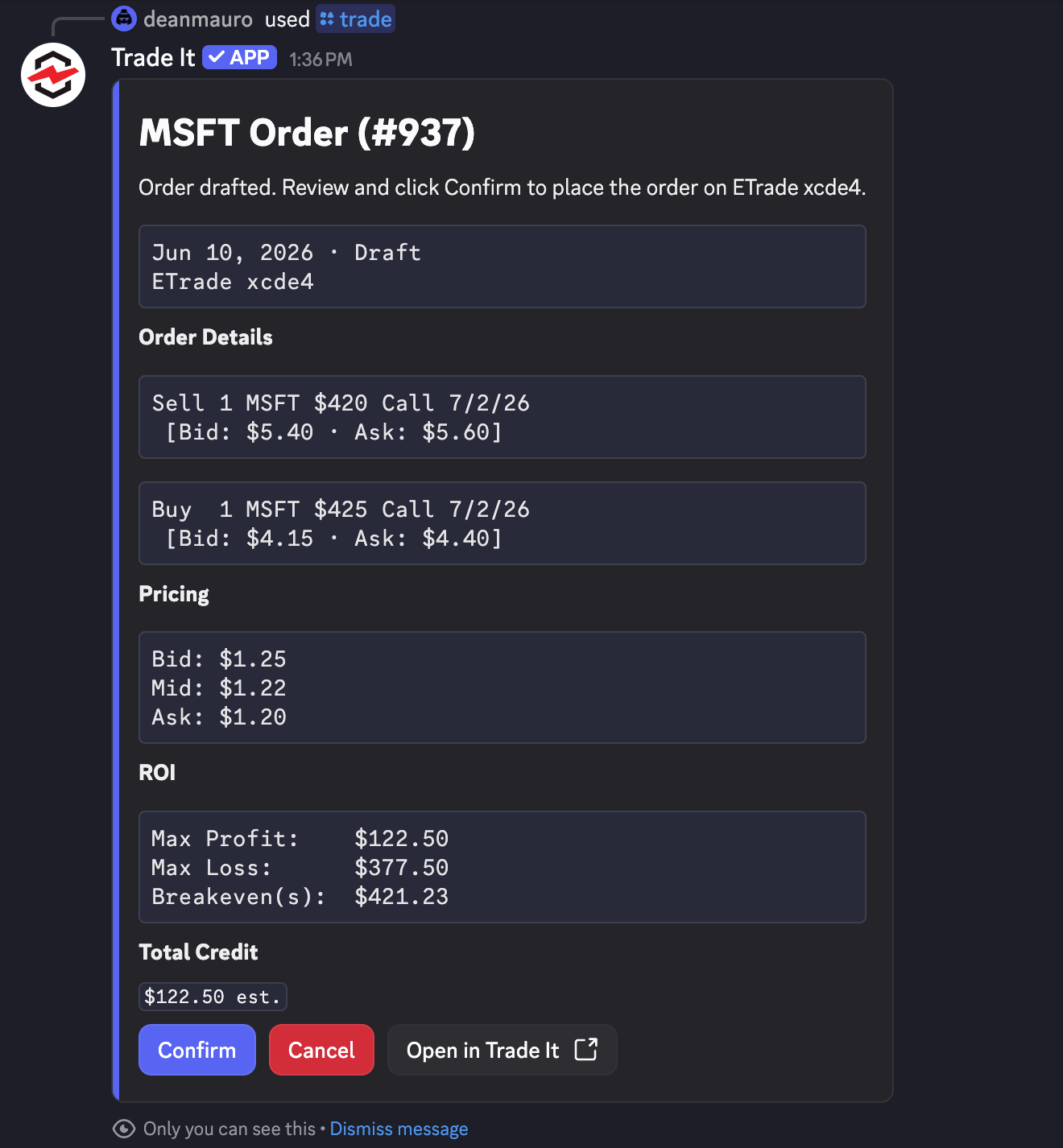
Drafts a trade order. All the details of the drafted trade are returned to review. You may then execute or cancel the draft.
Parameters
| Option | Required | What to enter |
|---|---|---|
order | Yes | The trade to draft in plain English, such as ticker, action, size, option legs, order type, limit or stop price, take profit/stop loss and target account. |
Examples
/trade order:Buy $100 of AMZN
/trade order:Sell 10 shares of AAPL limit 220
/trade order:Buy 1 AMZN 300 call expiring Friday
/trade order:Open a bullish MSFT call spread 5% OTM for next month
The bot can draft:
- Equity orders
- Crypto orders
- Single-leg option orders
- Multi-leg option strategies
- Relative requests when you provide enough detail, such as call or put, expiration, and target strike range
Note
If the bot needs more information, it will ask you to run /trade again with the missing detail included. Discord bot requests are stateless, so include the full order in the next command.

/accounts
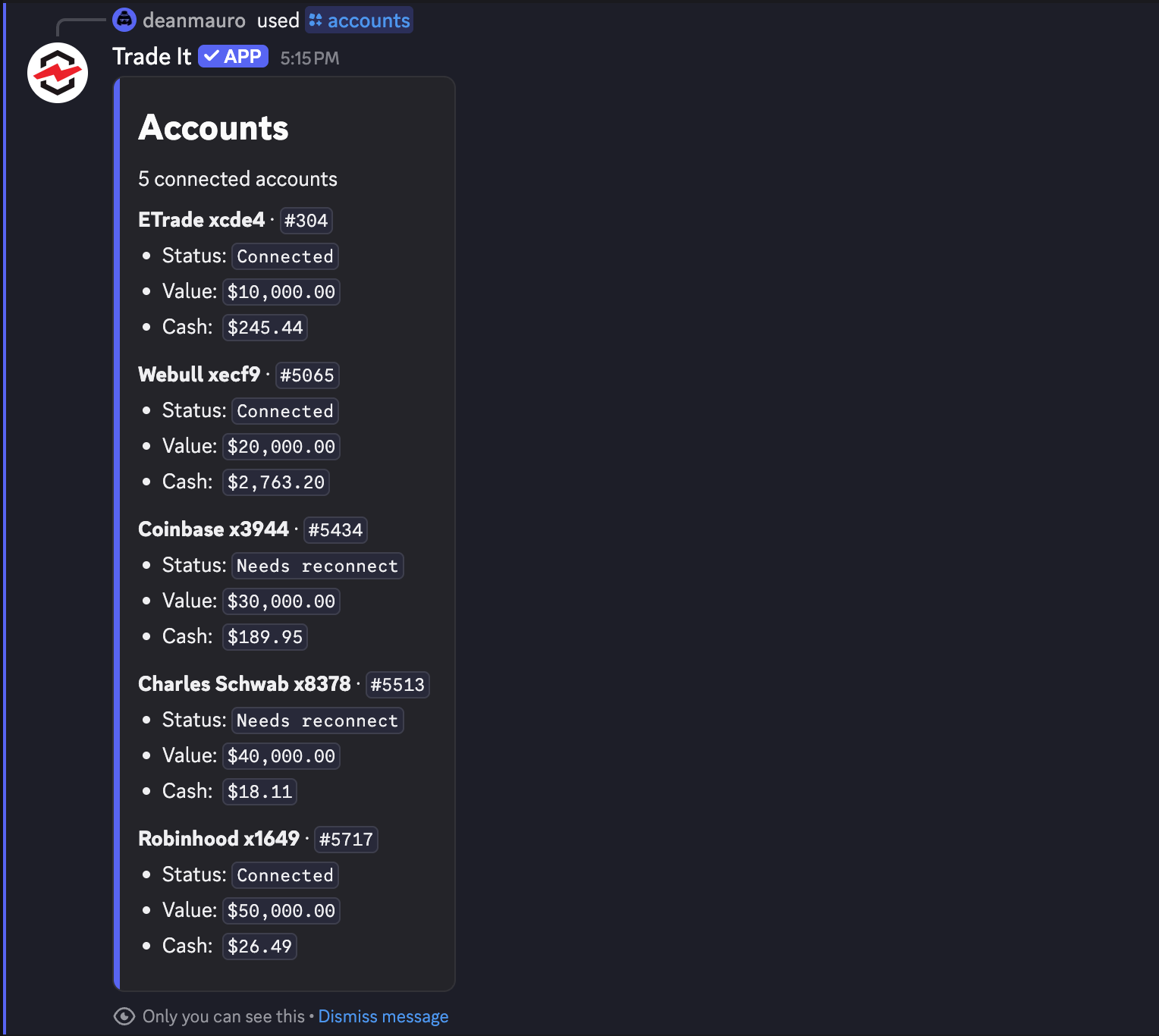
Shows your connected brokerage accounts, including:
- Account name
- Account value
- Buying power
Use this when you need the account id for /holdings, or when you want to confirm which brokerages are connected.

/holdings
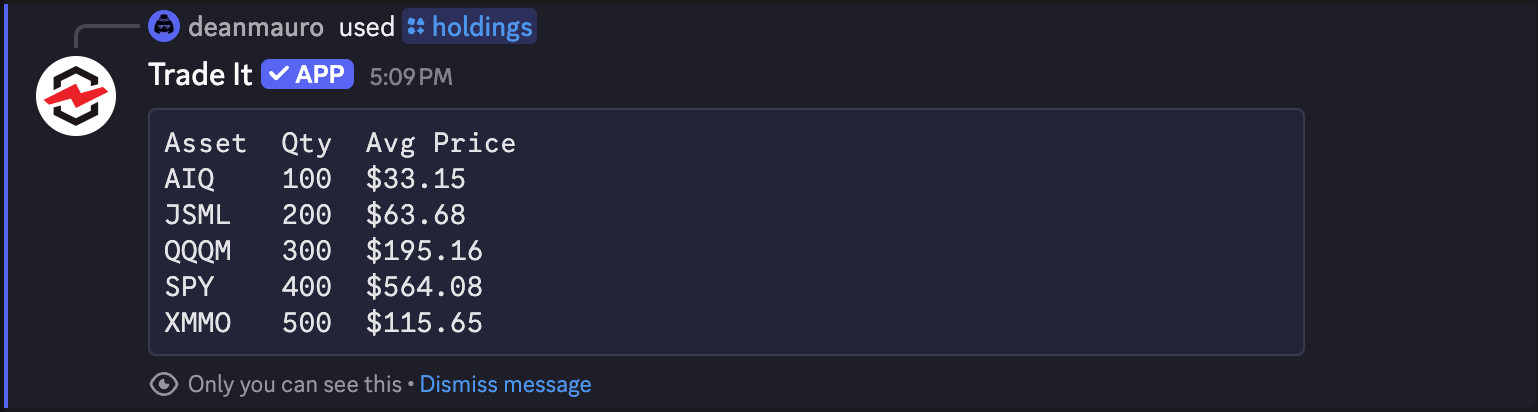
Shows holdings for one brokerage account. Run /accounts first if you need to find the account id.
Parameters
| Option | Required | What to enter |
|---|---|---|
account_id | Yes | The brokerage account id from /accounts. |
refresh | No | Set to true to request fresh holdings data when eligible. Otherwise cached daily data is returned. |
Examples
/holdings account_id:12345
/holdings account_id:12345 refresh:true
/trades
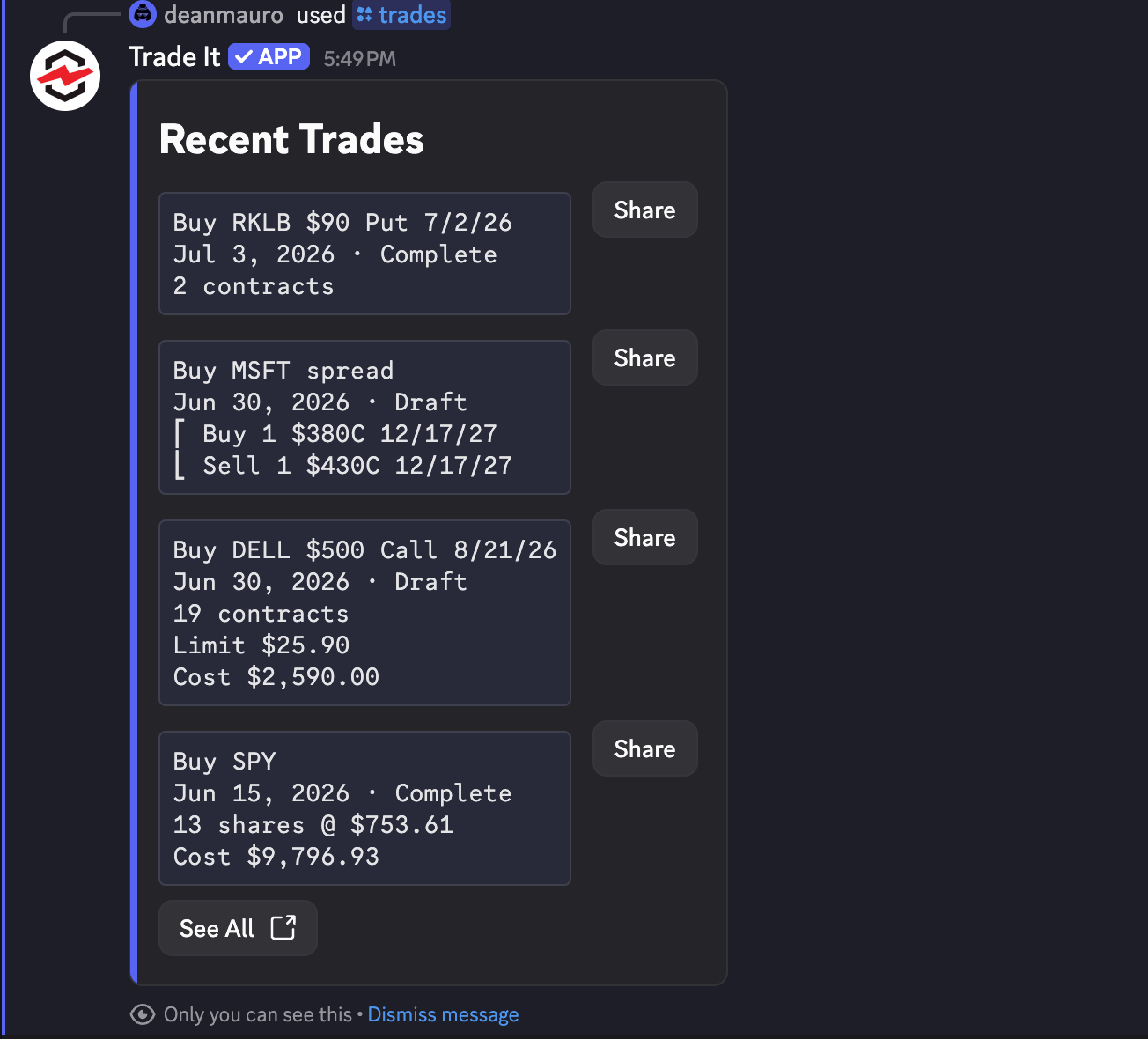
Shows recent trade activity in Discord. Each trade also includes a Share button for posting it to the channel as a public trade alert.
Parameters
| Option | Required | What to enter |
|---|---|---|
refresh | No | Set to true to request a fresh brokerage sync when eligible. Otherwise existing synced trades are returned. |

Sharing a Trade
Use the Share button to share one of your recent trades to the channel as a public alert (same as the /alert command).
- Run
/trades. - Click Share. A modal opens where you can add an optional note to the shared trade.
- Submit. The alert card posts publicly to the channel, built from the trade's details — asset, action, size, option legs, order type, prices, and any exit criteria, for others to Review & Trade on their own brokerages.
Note
Your /trades list is private to you; only the alert you post is visible to other members. See Trade Alerts for what members can do with an alert.
Channel Permissions
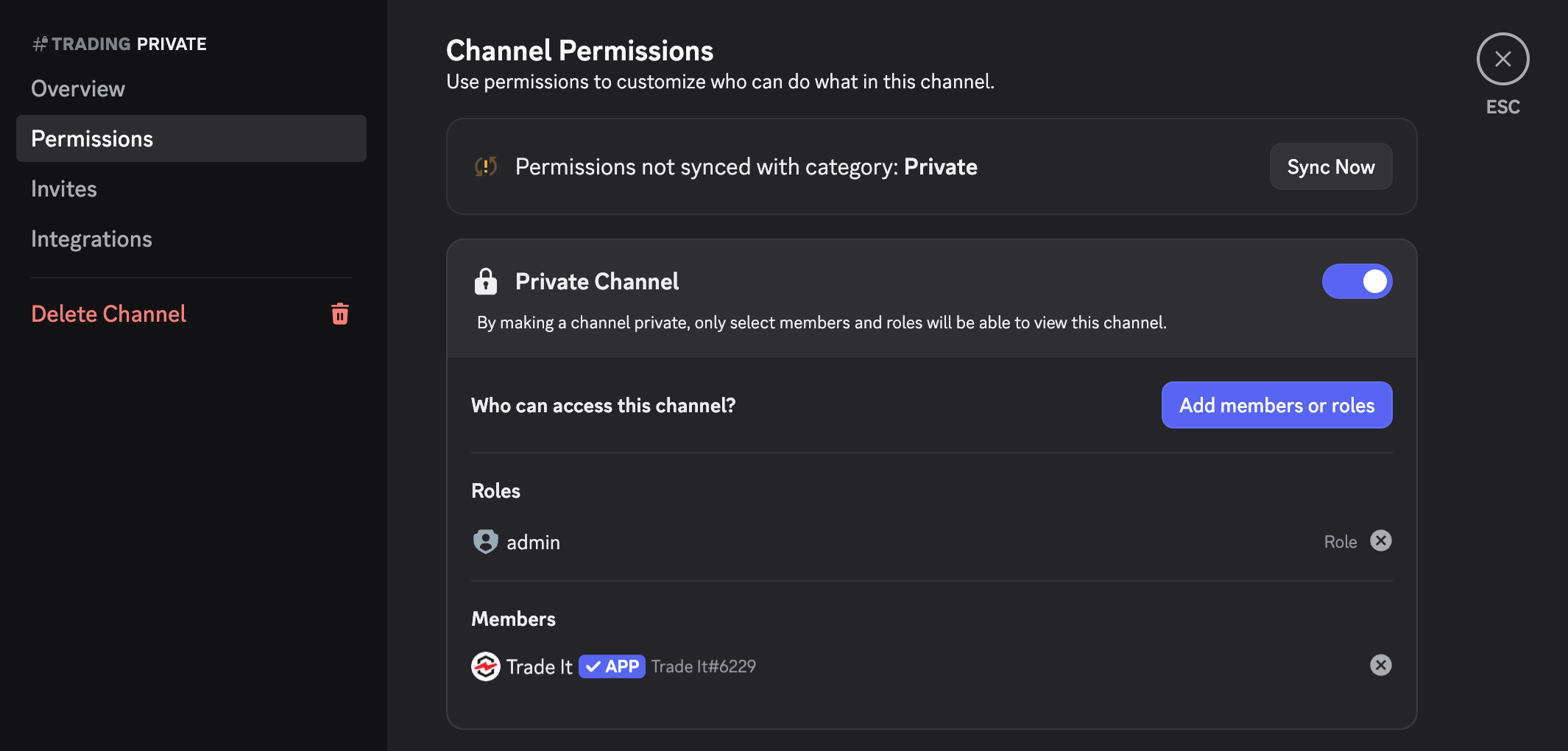
Trade It needs to be able to see and post in any channel it shares to. Most channels work with no setup, but if the channel is private, an admin must grant Trade It access to that channel:
- Open the channel's settings and go to Permissions.
- Add the Trade It app to the permission list.
- Allow View Channel and Send Messages for it.
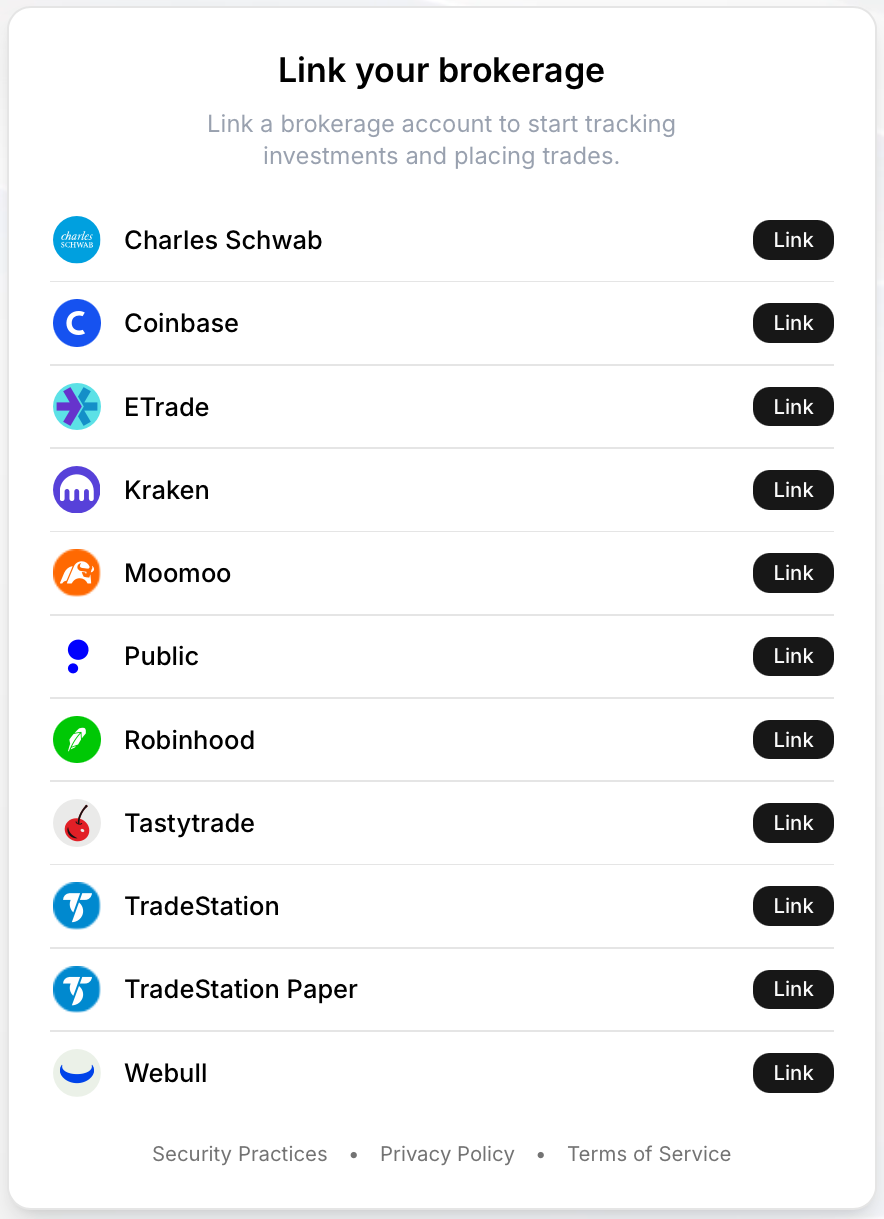
/connect
Opens Trade It so you can connect a brokerage. After connecting, your brokerage account becomes available for use with the /trade, /accounts, and /holdings commands.


/login
Links your Discord account to your Trade It account. You can start using slash commands after successfully doing so.


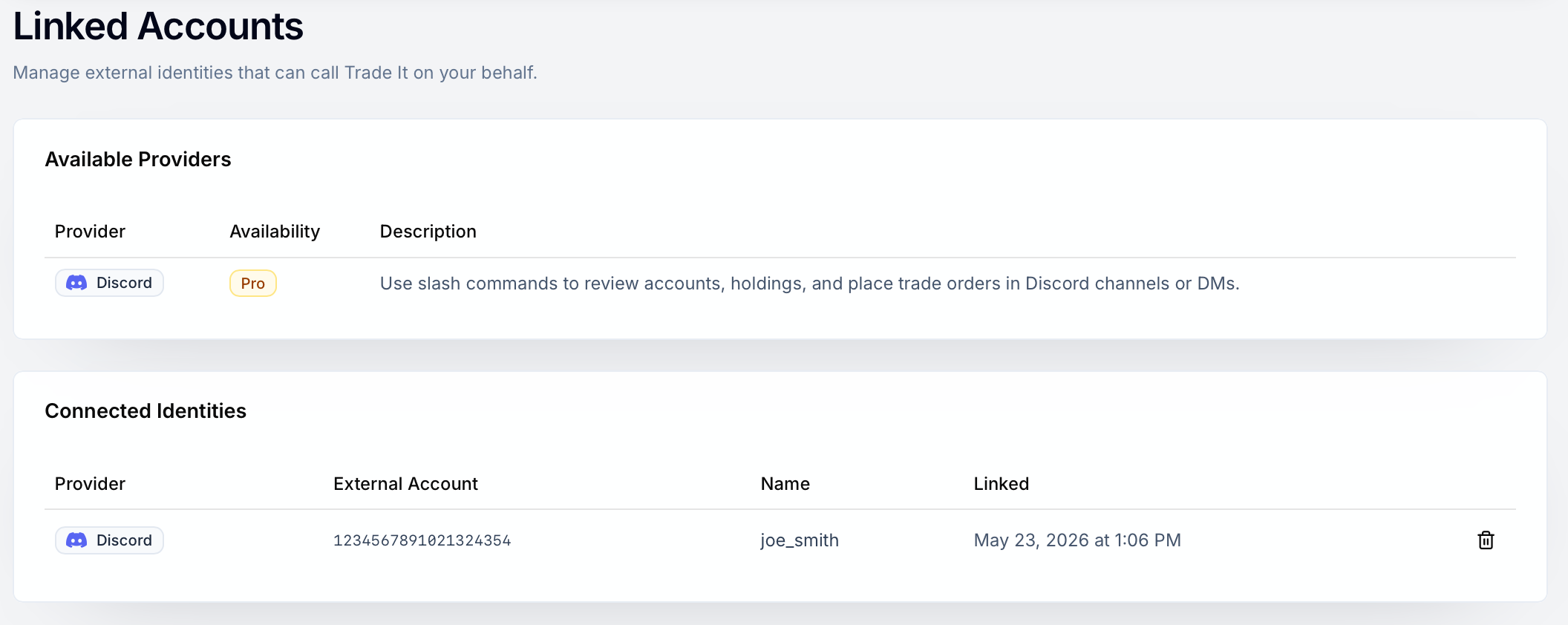
/logout
Disconnects the current Discord account from your Trade It account. Slash commands will stop working after doing this.


See Account Setup for details.