
Discord Bot Installation
Add Trade It to your server, pick the channels where it belongs, and start with /help.
Install
To add the bot to your Discord server:
- Open the install link above.
- Choose your server from the dropdown list.
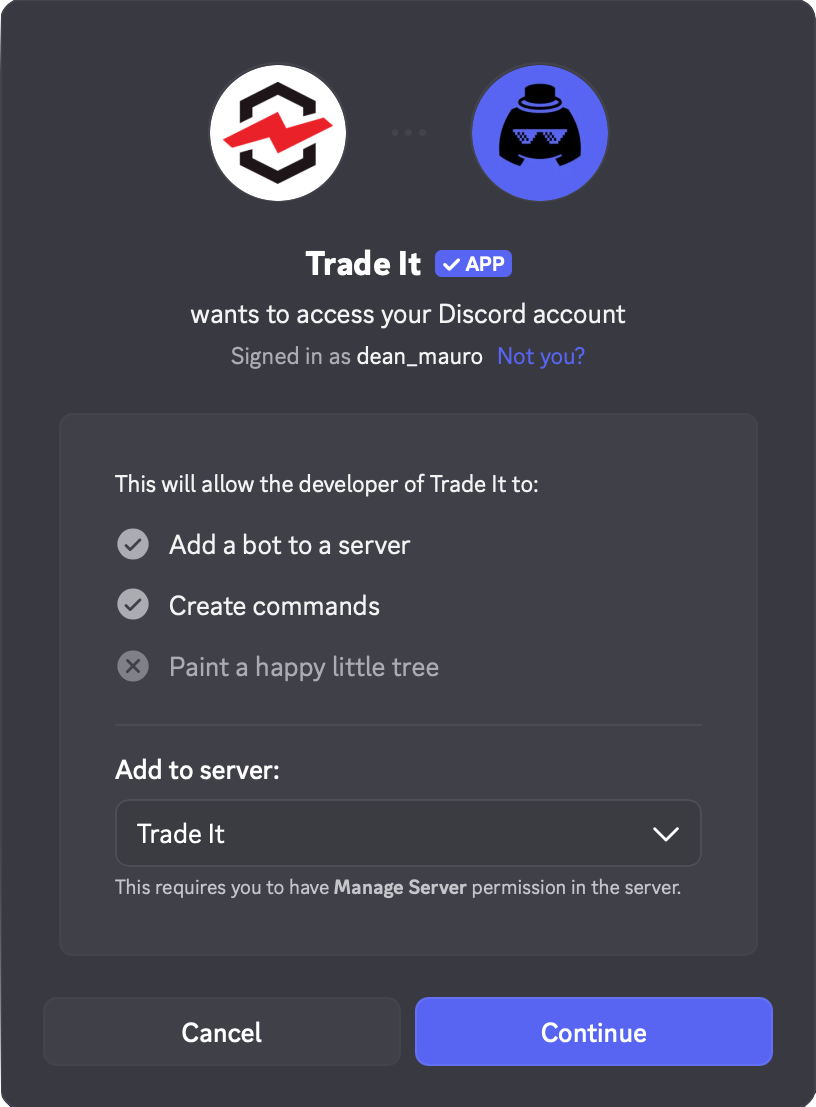
- Review permissions and click Authorize.
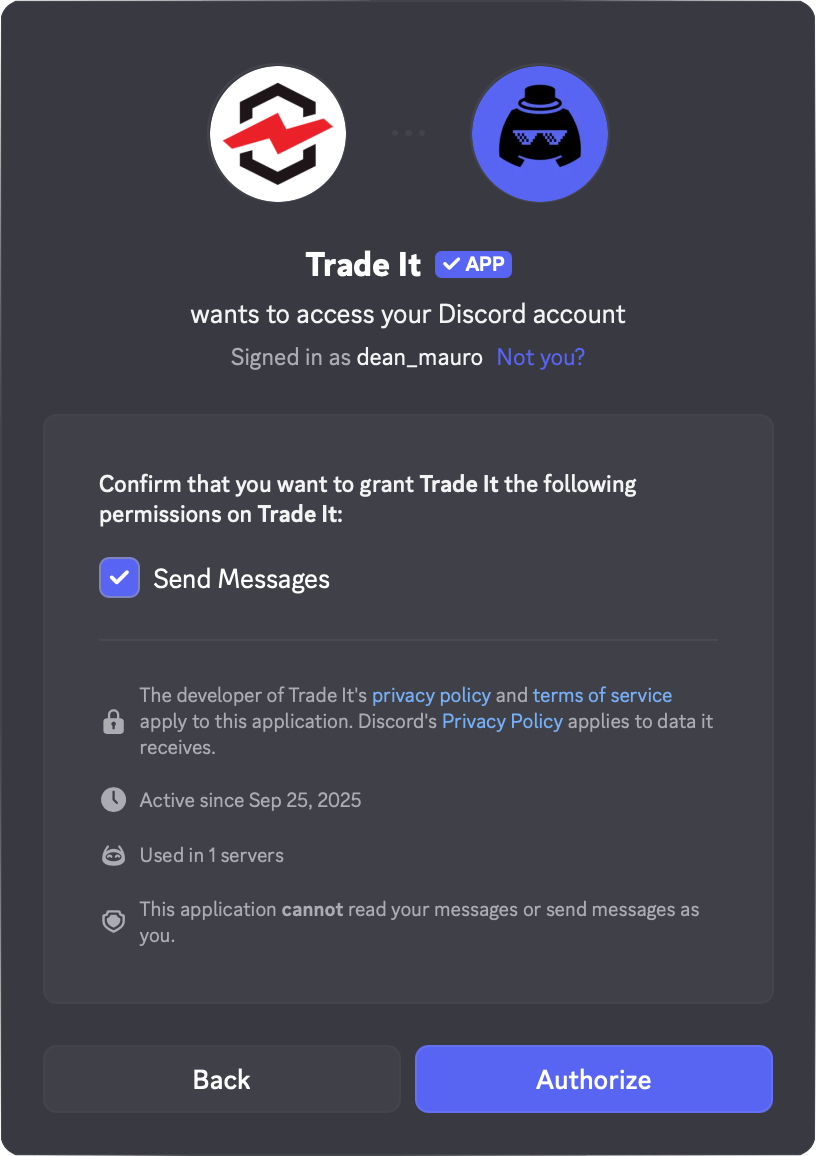
The bot is now available on your server!
Permissions
Before authorizing, the following permissions will be requested.
| Permission | Why it is needed |
|---|---|
| Send messages | Lets the bot respond to commands with cards, buttons, and text. |
Note
Trade It does not require administrator access. It cannot modify channels, nor send messages as any user. It only responds to known slash and menu commands.
Settings
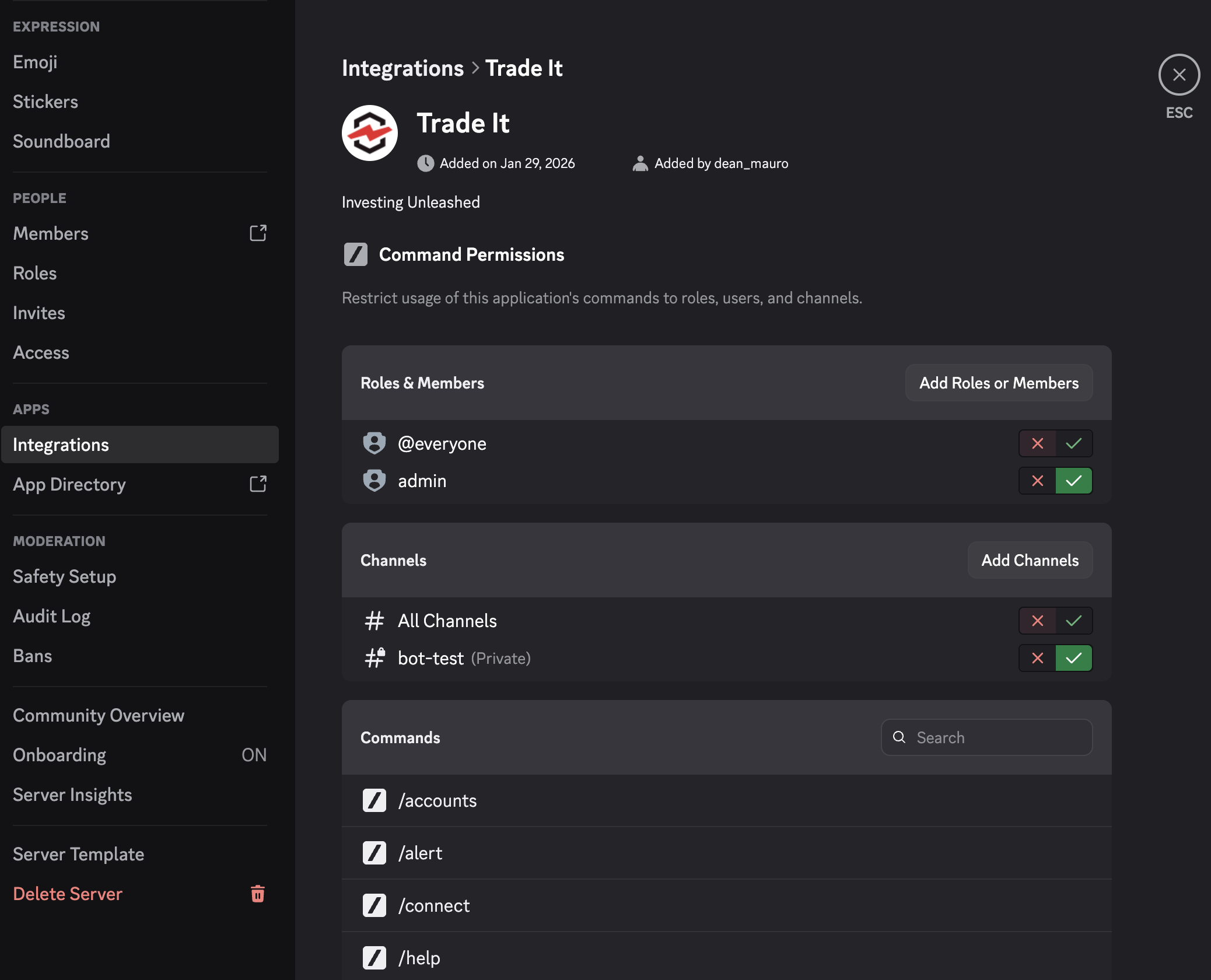
Configure the bot by right-clicking your server in Discord and navigating to
Server Settings > Integrations > Bots and Apps > Trade It
Use Role and Channel permissions to decide where the bot can be used. If you want a quieter rollout, keep it to one private channel first.
Testing
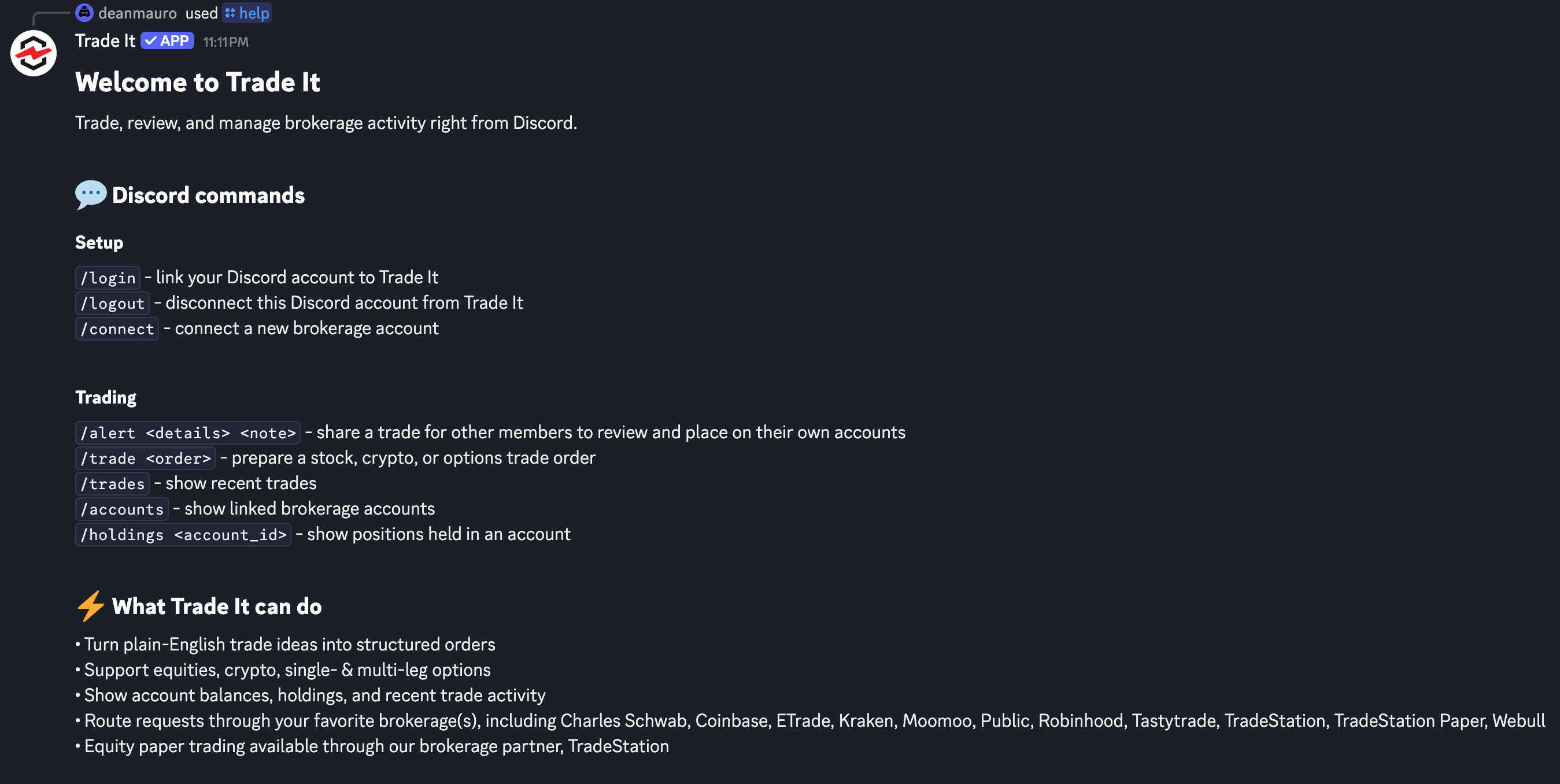
To test that the bot is working and to see a list of its capabilities, use the /help command.
You can also test the message context menu by right-clicking any trade callout and choosing Apps → Trade It → Copy Trade.