# Connection mode
Source: https://docs.tradeit.app/sdk/connect
Open the Trade It Portal in **Connection mode** whenever a user wants to add or reconnect a brokerage. Their saved authorization takes them straight to brokerage selection.
This is the same portal used in [Onboarding mode](/sdk/onboarding), configured with the user’s access token. The endpoint and SDK method stay the same.
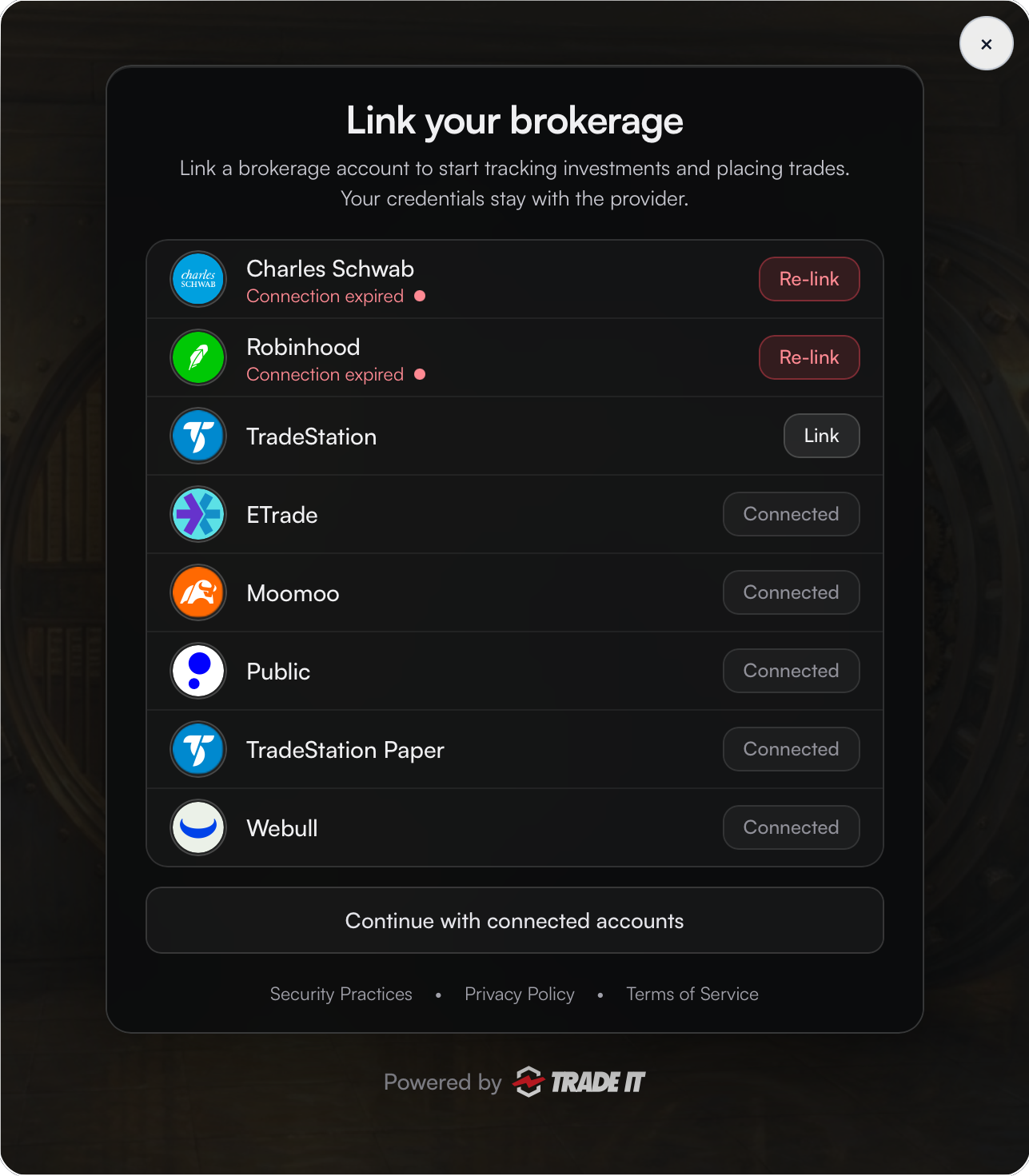
Select a brokerage
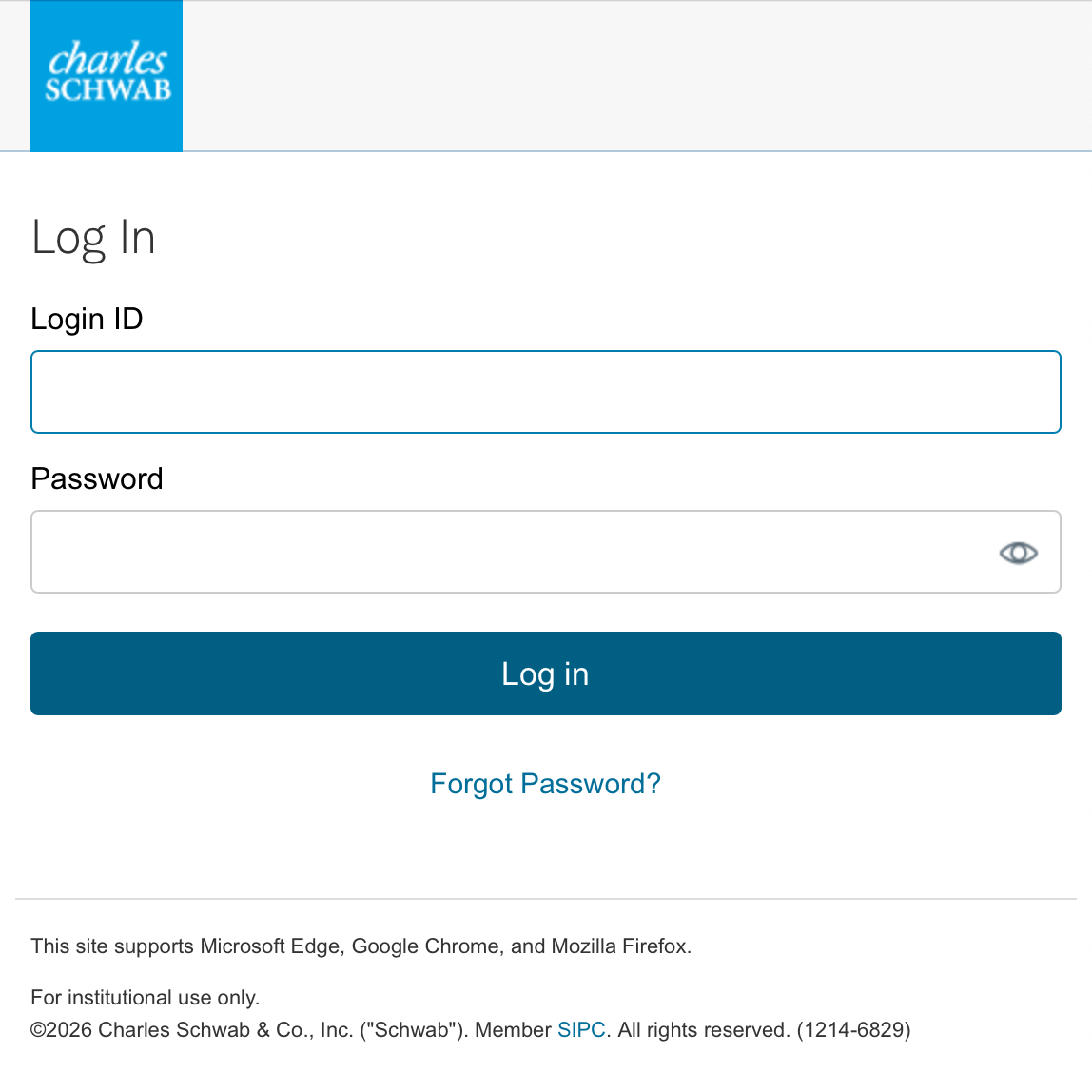
Authorize the brokerage
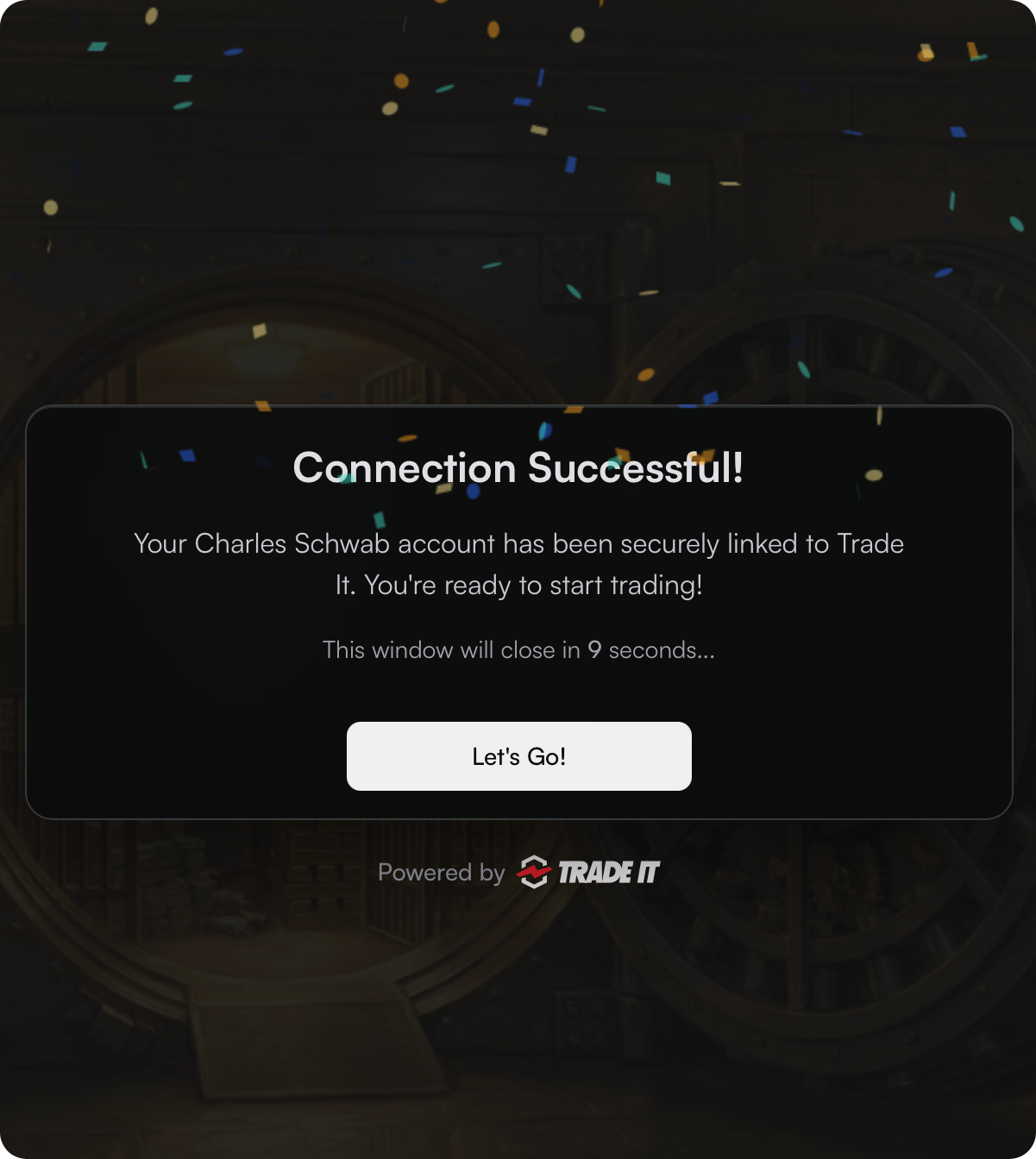
Connection ready
## Configure your request [#configure-your-request]
**Your backend** · Use the saved authorization
Reuse your `POST /api/tradeit/portal` route. Load the signed-in user’s saved Trade It access token and refresh it if expired.
Send that token as **Bearer** authentication to select Connection mode. Omit `oauth_options`; use `connect_options` to customize brokerage selection.
> **Onboard each user once**
>
> If the user has not authorized your app, start in [Onboarding mode](/sdk/onboarding) and save their access and refresh tokens. Connection mode reuses that authorization, so there is no new Trade It sign-in, consent screen, or authorization-code exchange.
> **Keep tokens on your server**
>
> Require your platform’s authenticated session and CSRF protection. Return only the portal URL to the browser. Connection mode accepts any valid Bearer token with `brokerage:write` permission, including OAuth access tokens, direct sign-in tokens, and API keys.
## Create Portal URL [#create-portal-url]
**Your backend** · `POST https://api.tradeit.app/api/portal`
Use the user’s access token with Bearer authentication. Optional `connect_options` work the same way in both modes.
```js
const portal = await fetch('https://api.tradeit.app/api/portal', {
method: 'POST',
headers: {
Authorization: `Bearer ${accessToken}`,
'Content-Type': 'application/json',
},
body: JSON.stringify({
connect_options: {},
}),
}).then(res => res.json());
```
Pass `portal.url` to your frontend.
**Example response**
```json
{
"url": "https://tradeit.app/connect?ti_token=ti:...&embedded=1",
"expiresAt": "2026-10-15T19:35:12.000Z"
}
```
> **Portal URL lifetime**
>
> Create a fresh URL before opening the portal. It expires after **30 minutes**. Treat it as sensitive and keep it out of logs and analytics.
### Request details [#request-fields]
- **`connect_options`** · `object`
Customize brokerage selection. Omit this object or send `{}` to show every active brokerage. Use either `brokerage_code` or `brokerage_filter`, never both.
- **`connect_options.brokerage_code`** · `string`
Skip the picker and open this brokerage’s connection flow directly. See [supported brokerages](/brokerages). Cannot be combined with `brokerage_filter`.
Allowed values: `robinhood`, `coinbase`, `etrade`, `moomoo`, `kraken`, `fidelity`, `charles_schwab`, `webull`, `tradestation`, `tradestation_paper`, `public`, `tastytrade`.
- **`connect_options.brokerage_filter`** · `object`
Filter the brokerage picker by capabilities or brokerage codes. Inactive brokerages are omitted. If nothing matches, the picker shows every active brokerage. Filters do not change your app’s permissions.
- **`connect_options.brokerage_filter.supports`** · `string[]`
Only show brokerages supporting every listed capability.
Allowed values: `stock`, `crypto`, `options`, `fractional-shares`, `notional-orders`, `take-profit`, `stop-loss`.
- **`connect_options.brokerage_filter.include`** · `string[]`
Only show these brokerage codes. See [supported brokerages](/brokerages).
Allowed values: `robinhood`, `coinbase`, `etrade`, `moomoo`, `kraken`, `fidelity`, `charles_schwab`, `webull`, `tradestation`, `tradestation_paper`, `public`, `tastytrade`.
- **`connect_options.brokerage_filter.exclude`** · `string[]`
Hide these brokerage codes. Exclusions take precedence over `include`.
Allowed values: `robinhood`, `coinbase`, `etrade`, `moomoo`, `kraken`, `fidelity`, `charles_schwab`, `webull`, `tradestation`, `tradestation_paper`, `public`, `tastytrade`.
#### Full list [#full-list]
Omit `connect_options`, or use:
```json
{
"connect_options": {}
}
```
#### Filtered list [#filtered-list]
For example, show options-supporting brokerages except Tastytrade:
```json
{
"connect_options": {
"brokerage_filter": {
"supports": ["options"],
"exclude": ["tastytrade"]
}
}
}
```
> **Brokerage filter behavior**
>
> The picker omits inactive brokerages. If nothing matches, it shows every active brokerage. Filters customize the picker; they do not change your app’s permissions.
#### One targeted brokerage [#one-targeted-brokerage]
Skip the picker and open a specific brokerage’s connection flow:
```json
{
"connect_options": {
"brokerage_code": "charles_schwab"
}
}
```
> **Keep the authorization current**
>
> Refresh expired access tokens before requesting a URL. Invalid tokens return `401`; the portal does not automatically switch to Onboarding mode.
## Open the portal [#open-the-portal]
**Your frontend** · `npm install @trade-it/react`
Use the same `openConnect` method as Onboarding mode. The returned URL opens Connection mode directly.
```tsx
import { TradeItModal, useTradeIt } from '@trade-it/react';
function ManageConnectionsButton() {
const tradeIt = useTradeIt();
async function openPortal() {
const response = await fetch('/api/tradeit/portal', { method: 'POST' });
if (!response.ok) throw new Error('Unable to open the portal');
const { url } = await response.json();
tradeIt.openConnect({ launch: { mode: 'connect', url } });
}
return (
<>
{tradeIt.modalProps && }
);
}
```
The user selects a brokerage and completes its sign-in. Some brokerages open a separate tab; the portal tracks progress and resumes automatically.
> **No new authorization event**
>
> Connection mode uses the tokens you already saved. Your `onAuthorization` callback runs only when the portal is in Onboarding mode.
## Connection Flow [#connection-flow]
See the progression from brokerage selection to a completed connection.
### 1. Select a brokerage [#_1-select-a-brokerage]
Users choose a brokerage. Existing and expired connections are marked so they can add another account or reconnect.

Choose a brokerage to connect.
### 2. Complete brokerage authentication [#_2-complete-brokerage-authentication]
The portal confirms the brokerage and starts its sign-in flow.
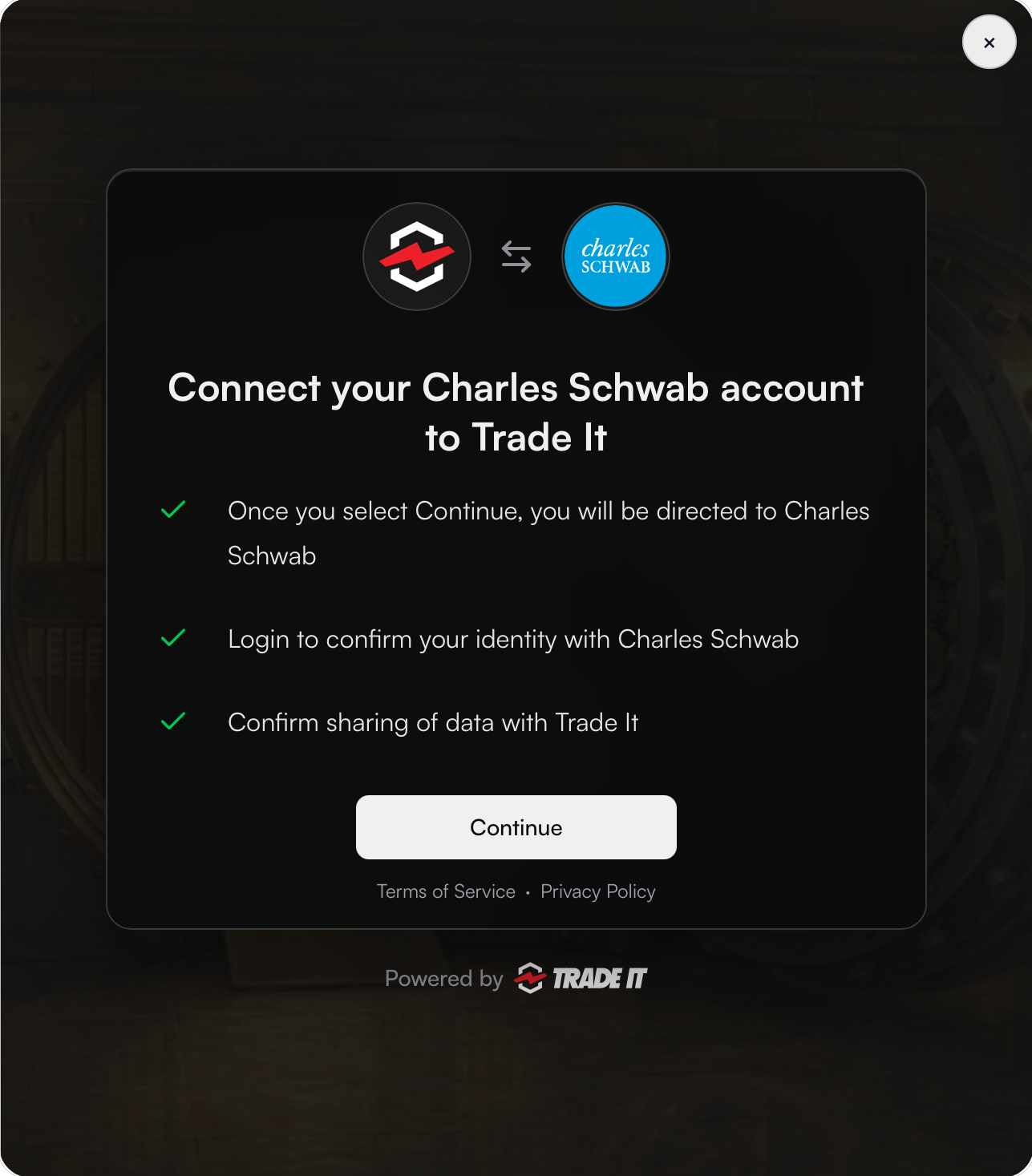
Start the brokerage’s sign-in flow.
Some brokerages open a separate tab or window. The portal tracks progress and resumes automatically when authentication finishes.
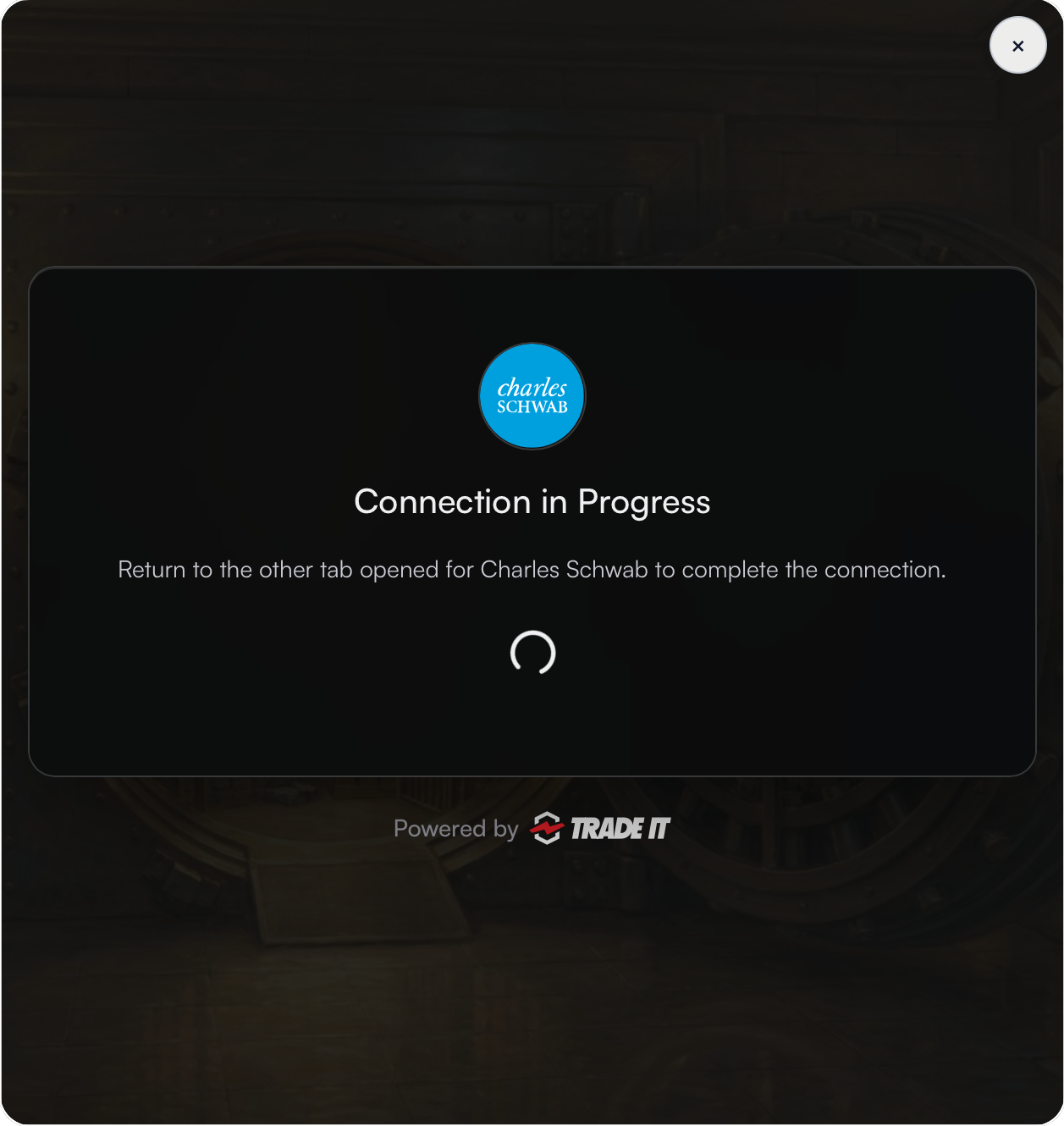
The portal tracks the connection.

The user signs in with their brokerage.
### 3. Return to your app [#_3-return-to-your-app]
Trade It confirms the connection. Your app can now load the user’s accounts, holdings, and trade history.

The connection is ready.